Brook Wingman FGC2
The Brook Accessories Wingman FG2 is currently the easiest method of connecting the Quadstick to the PS5. It connects in-between the Quadstick and the PS5 console.
Quadstick set up:
The Quadstick can work with the FGC2 in several USB emulation modes but for full touchpad and motion sensor controls, placing the Quadstick in a PS4 compatible mode is required. USB modes 4, 6, or 7 can be used. The easiest way to place the Quadstick in USB mode 4 is to turn on "Enable boot in PS4 USB mode" and "Titan Two PS4 flag" settings in the miscellaneous preferences.
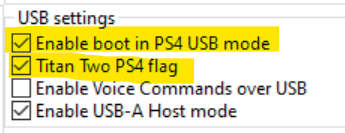
With these settings in place, individual configuration files will not need to set the USB emulation mode.
Wingman FGC2 firmware:
The firmware loaded in the FGC2 when it leaves the factory needs to be updated to avoid this error message from the PS5:
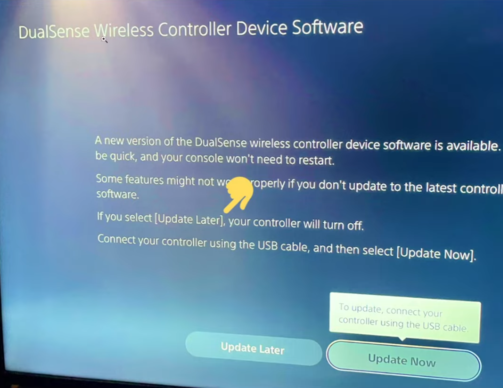
If that message is seen, disconnect the FGC2 from the PS5 and update its firmware using a PC.
The firmware can be updated using a web browser at this address: https://bkg.brookaccessory.com/BrookUpdate/update.html?device=wm_series&lang=en
Select the latest NON-Beta firmware. V1.1.2.4 at this time.
If the FGC2 is purchased from Quadstick it will already have the firmware updated.
Prepare the PS5:
If the PS5 settings, disable the Bluetooth and set the Dual Sense controller to use USB only. If this is not done, the original DS controller can interfere with the FGC2 connection.
Wake up the connection:
The PS5 requires the PS button be pressed start communicating with the FGC2. This is usually mapped to a soft sip on the center hole in the factory configuration files.
The FGC2 can be purchased through Quadstick, Amazon, or Brook Accessories. Quadstick will perform the firmware update before shipping the adapter.